Users
Customer accounts: sign-in with a username and password, sign-up and its settings
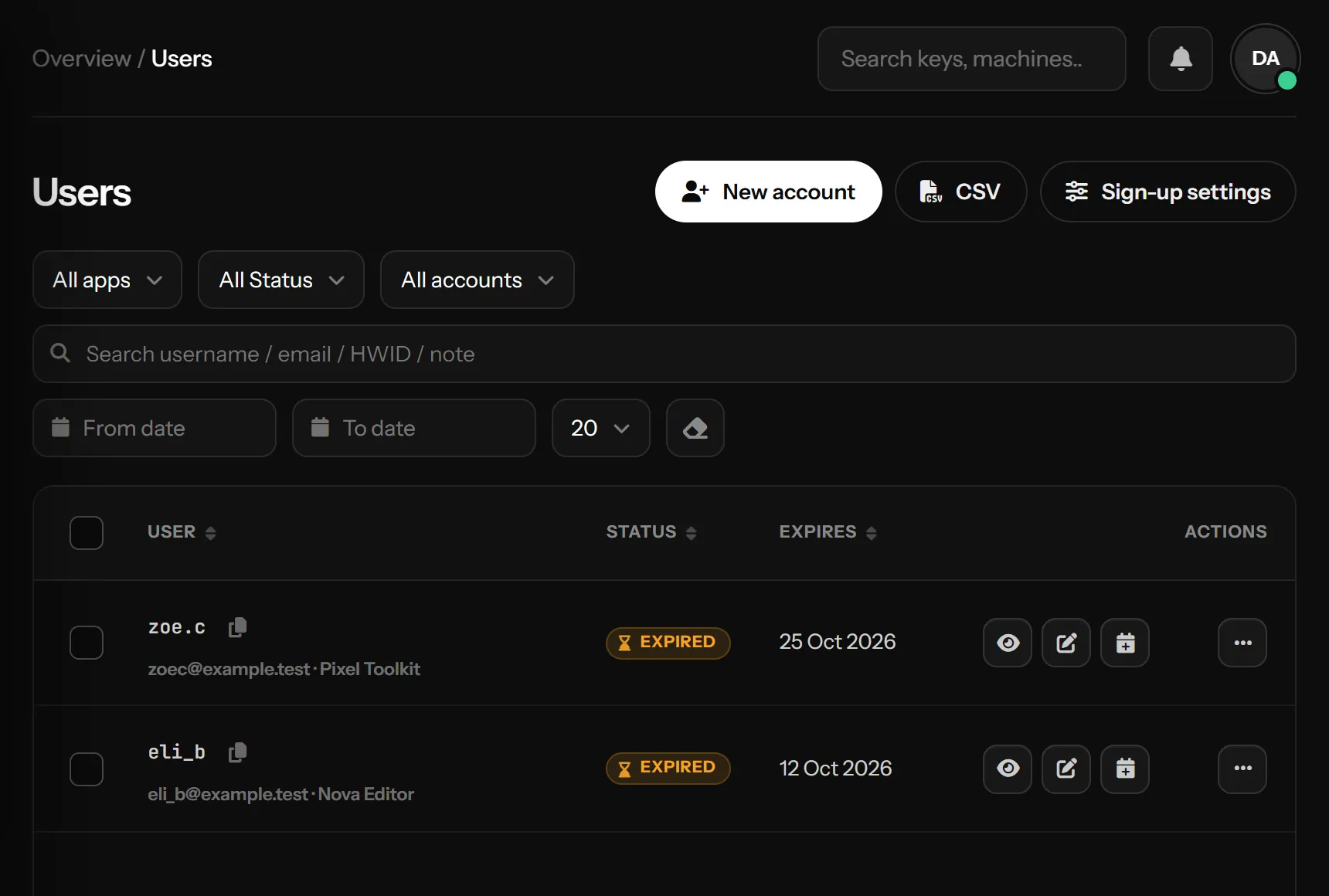
Besides license keys, your customers can sign in to your program with a username and password. Those are customer accounts, and this page is where you see them, make them and act on them. Accounts belong to one application; the same username can exist in two apps
Where accounts come from
- App sign-up: the customer signs up inside your program (the SDK's
RegisterAccountAsync, orRegisterAccountWithKeyAsyncwith a key, see C# and VB.NET). This only works while sign-up is on for the app, see Sign-up settings - App sign-up with a key: the customer signed up with a license key; the account took the key's time and the key is spent (it shows as Redeemed in Licenses)
- Panel: you made it with New account. Pick the app, a username (3 to 30 letters, digits or
_), a password of at least 8 characters ( makes a strong one), the length and how many sessions may run at once. The sign-in details show once in a window you can copy from; the password is never shown again
The cards and the table
Total, Active, Expired, Banned and Paused filter the table when clicked; click again to show everything. Online now counts accounts signed in right now and opens Sessions. Sign-ups counts accounts made in your app over the last 7 days and lists them
Each row shows the username (and email), the status, the machine the account is bound to, how many copies are signed in out of how many are allowed, your note, when and how it was made, when it ends, the last sign-in and the number of sign-ins. Search finds a username, email, machine ID or note. The Ending in 7 days status lists active accounts that end within a week. Filters, sorting and pages change in place, without reloading. CSV downloads what the filters show (never any password data)
One account
Click a row (or ) to open its side panel:
- Details: app, email, end date, what it started with, who made it, last sign-in, machine
- Signed in: every running copy, with to end one. That program hears "This session was ended by the developer" and can sign in again
- License keys added: keys the customer spent on the account, how much each added and when. A key you later ban takes its time back
- Variables: the values your program keeps on the server for this customer (User variables), to read, change or remove
- Account: email, sessions at once, note, and a new password. A new password signs out every copy using the account ("The account password was changed")
- Recent activity: sign-ups, sign-ins, refused sign-ins, keys added, password changes and everything you did, page by page
Actions
- Pause stops the account and keeps the time it has left; the program closes with "Your account is currently paused". Resume gives the time back, counted from now
- Add time adds or removes days. An expired account starts again from today; a paused one keeps the new time until resumed. On a lifetime account it reads Give an end date: the account then ends that many days from now
- Make lifetime removes the end date. An expired account becomes active again
- Reset machine forgets the PC the account is bound to; the old PC hears "The hardware ID of this license was reset" and the next sign-in binds the new one
- Ban closes the program on its next check-in ("Your account has been banned") and refuses sign-in. Unban puts it back as active, expired or paused, whichever its time says
- Delete removes the account for good. Running copies hear "This account no longer exists"
Tick several rows to add time, reset machines, ban, unban or delete them together. Everything you do is written to the activity log, and running programs learn about it on their next check-in, within about 30 seconds
Sign-up settings
They are in each app's settings, App settings → Customers; Sign-up settings on this page opens them. For each app:
- On or off: whether customers can sign up inside your program. When it is off, sign-up answers
REGISTRATION_DISABLED; accounts you make still work - A new account gets: a number of days (1 to 3650), No time yet (it can sign in only after you add time or the customer adds a key), or Lifetime
- Sign-up needs a license key: the account is made only with an unused key, takes its time and sessions at once, and the key is spent
- A key added later either adds on top of the time left or starts over from now, and the account either keeps its sessions at once or takes the key's
Customers add more keys to their account themselves, from your program (the SDK's RedeemKeyAsync) or on the customer portal, even after the account has expired
The customer portal
Your customers can sign in on the customer portal (pwfauth.com/customer) under Account, with the same username and password they use in your program. There they see how long the account runs, add a license key of your app, move the account to a new PC (by the rules in HWID resets), sign out copies that are still running and change their password. The portal does not ask which app: every account with that username and password opens, one tab for each app
Linked apps: one account for several apps
When you sell more than one app (for example a Basic and a Pro version), the customer can use one account for all of them. In each app's settings → Customers, put those apps in the same Linked group under Shared accounts
- A customer signs up once, in any app of the group, and signs in to every app of the group with the same username and password
- Each app keeps its own time and keys: the account can have a month of the Basic app and a year of the Pro one. A key adds time only to the app it belongs to
- The first sign-in to another app of the group makes the account there with no time yet; the customer adds a key of that app (from your program,
RedeemKeyAsync), or you add time on this page - A new password changes it in every app of the group
- A name already used in one app of the group can't sign up again in another; the customer signs in with it instead
- Take an app out of the group and new customers stay apart again; accounts already made there keep working
RegisterAccountWithKeyAsync, in the PWFAuth NuGet package 1.3.0 or newer. Programs built with an older version are refused with KEY_REQUIRED, so update them before you turn it onSomething missing or unclear? Tell us on Telegram